Desktop App Operation: Variable Encode NFC Tags
The Encode NFC Tags operation is a feature of the GoToTags Desktop App used for encoding NFC tags using an encoding file.
Purpose
The Encode NFC Tags operation should be used for:
- Encoding NFC tags in bulk
- Encoding NFC tags with variable data
- Saving and exporting encoded data for future use
- Placing one NFC tag on an NFC reader at a time
Prerequisites
The Encode NFC Tags operation has the following prerequisites:
- Have at least plugged in
- Have at least one NFC tag that is supported by the app and the corresponding NFC reader
- Only one NFC tag is placed on an NFC reader at a time
- NFC tags are not write-locked
Setup
To set up the operation, select Create New Operation or Open Existing Operation. For settings specific to this operation, use the following tabs:
Chip Tab
The operation requires that you select an NFC chip type. If multiple chip types are being encoded, select “Any NFC Chip Type”. It is strongly recommended that a chip type be selected, as it enables the app to encode NFC tags at much higher speeds and with greater reliability. Some chip types support custom encoding options, such as password protection.
Options Tab
The operation supports the following options:
- Auto Select Next Tag – Defines whether or not the operation should auto-select the following tag after a tag is encoded
- Enforce ID Order – When enabled, the operation will pause and display an error if a barcode is scanned and the corresponding correlation ID is not immediately after or before the previously encoded tag
- Enforce Tag Timing – When enabled, the operation will keep track of the moving average of time between each tag encode. If the app does not detect a tag for more than 1.5x the average, an error will be shown
- Queue IDs on Scan – When enabled, correlation IDs scanned by a barcode scanner will be added to a queue rather than replacing the current selected tag. When a tag is encoded and a value is in the queue, the value will be pulled from the queue and that row will be selected
Encoding File
Once the operation is created, an encoding file must be imported. This operation supports any NFC encoding file. If the data needs to be correlated, ensure you include the “correlationId” column.
Encoding
Once setup is complete, start encoding tags:
- Click the “Start Encoding” button in the top center
- Scan a barcode if using barcode data
- Place the NFC tag on the reader
- Repeat
Export Data
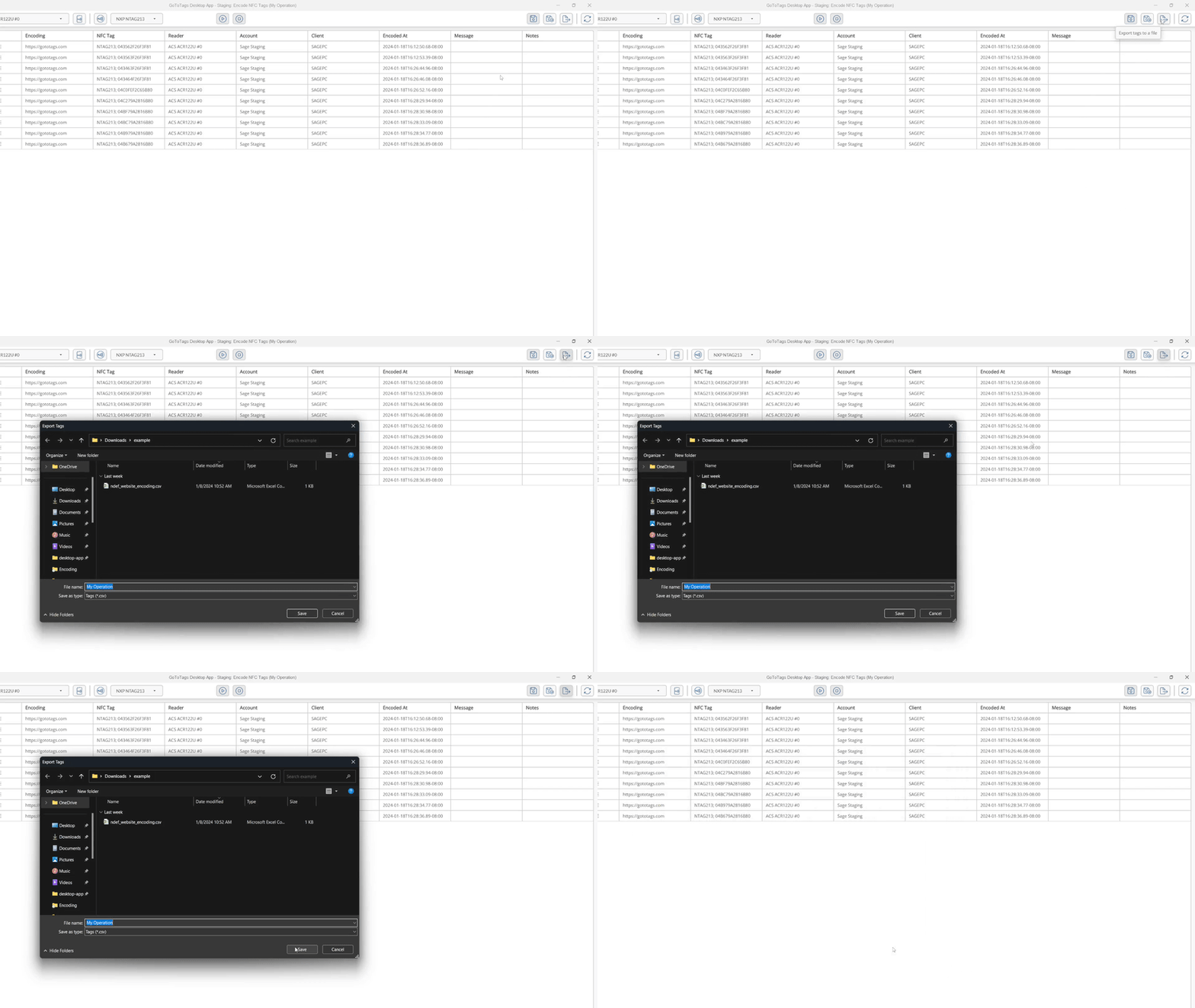
When encoding is paused or stopped, the operation state will automatically be saved to the operation file which can be reopened in the app at any time. This data can also be exported to different formats such as CSV, TSV and TXT. Exported data cannot be reopened in the app and is meant for user readability. To export the tag data:
- Ensure tag reading is paused or stopped
- Click the “Export Tags” Button
- Select the location and format to export the data to
Errors
During NFC tag encoding, errors may occur for several reasons, but are most common when NFC tags are moved away from the reader too quickly. When an error is received for a known reason, the row in the operation will flash red. As long as the NFC tag is not corrupted, encoding may be reattempted. If the NFC tag continues to produce errors and cannot be encoded, the row of data can be skipped by right-clicking it and clicking “Mark Bad Tag”. Errors will also occur if a previously encoded tag is placed on the reader again. In this case, the row for this tag will be highlighted in red until the tag is removed.
If you believe you have encountered an unexpected problem with the app, submit a bug report.
 https://gototags.com/wp-content/uploads/sites/12/2025/11/desktop_app_v4300_release.jpg
454
1300
bethanjohnson
https://gototags.com/wp-content/uploads/sites/12/2024/01/gototags_logo.svg
bethanjohnson2025-11-06 14:17:562025-11-14 12:02:34GoToTags Desktop App v4.30.0 Introduces Two Specialized NFC Encoding Operations
https://gototags.com/wp-content/uploads/sites/12/2025/11/desktop_app_v4300_release.jpg
454
1300
bethanjohnson
https://gototags.com/wp-content/uploads/sites/12/2024/01/gototags_logo.svg
bethanjohnson2025-11-06 14:17:562025-11-14 12:02:34GoToTags Desktop App v4.30.0 Introduces Two Specialized NFC Encoding Operations https://gototags.com/wp-content/uploads/sites/12/2025/10/posts_use_nfc_tags_iphone-copy.jpg
455
1300
bethanjohnson
https://gototags.com/wp-content/uploads/sites/12/2024/01/gototags_logo.svg
bethanjohnson2025-10-31 13:24:332025-11-14 12:02:58How to Use NFC Tags with an iPhone (iOS)
https://gototags.com/wp-content/uploads/sites/12/2025/10/posts_use_nfc_tags_iphone-copy.jpg
455
1300
bethanjohnson
https://gototags.com/wp-content/uploads/sites/12/2024/01/gototags_logo.svg
bethanjohnson2025-10-31 13:24:332025-11-14 12:02:58How to Use NFC Tags with an iPhone (iOS) https://gototags.com/wp-content/uploads/sites/12/2025/10/posts_nfc_chip_performance.jpg
455
1300
bethanjohnson
https://gototags.com/wp-content/uploads/sites/12/2024/01/gototags_logo.svg
bethanjohnson2025-10-23 08:22:392025-10-23 08:22:39Which NFC Chip Type is the Best?
https://gototags.com/wp-content/uploads/sites/12/2025/10/posts_nfc_chip_performance.jpg
455
1300
bethanjohnson
https://gototags.com/wp-content/uploads/sites/12/2024/01/gototags_logo.svg
bethanjohnson2025-10-23 08:22:392025-10-23 08:22:39Which NFC Chip Type is the Best? https://gototags.com/wp-content/uploads/sites/12/2025/10/posts_rfid_label_insertion.jpg
455
1300
bethanjohnson
https://gototags.com/wp-content/uploads/sites/12/2024/01/gototags_logo.svg
bethanjohnson2025-10-10 14:12:312025-10-10 15:31:44GoToTags RFID Label Insertion Service
https://gototags.com/wp-content/uploads/sites/12/2025/10/posts_rfid_label_insertion.jpg
455
1300
bethanjohnson
https://gototags.com/wp-content/uploads/sites/12/2024/01/gototags_logo.svg
bethanjohnson2025-10-10 14:12:312025-10-10 15:31:44GoToTags RFID Label Insertion Service