Desktop App Operation: Encode NFC Tags
The Encode NFC Tags operation is a feature of the GoToTags Desktop App used for encoding NFC tags in bulk without defining a quantity or variable data.
Contents
Purpose
The Encode NFC Tags operation should be used for:
- Encoding NFC tags in bulk
- Saving and exporting encoded data for future use
- Placing one NFC tag on an NFC reader at a time
Prerequisites
The Encode NFC Tags operation has the following prerequisites:
- Have at least plugged in
- Have at least one NFC tag that is supported by the app and the corresponding NFC reader
- Only one NFC tag is placed on an NFC reader at a time
- NFC tags are not write-locked
Setup
To set up the operation, select Create New Operation or Open Existing Operation. For settings specific to this operation, use the following tabs:
Chip Tab
The operation requires that you select an NFC chip type. If multiple chip types are being encoded, select “Any NFC Chip Type”. It is strongly recommended that a chip type be selected, as it enables the app to encode NFC tags at much higher speeds and with greater reliability. Some chip types support custom encoding options, such as password protection.
Options Tab
The operation supports the following options:
- Require Barcode Data – When enabled, the operation will not attempt to encode a tag until a barcode has been scanned
- Ignore Duplicate Barcodes – When enabled, the operation will ignore any barcode data that has already been used to encode a tag
Encoding Tab
For this operation, encoding data is defined at the operation level and will be applied to every tag. If you need variable encoding data, use the Variable Encode NFC Tags operation. The following encoding data can be defined:
- Lock – When enabled, each tag will be permanently locked
- NDEF Message – The NDEF message can contain any number of NDEF records as long as they do not exceed the chip’s memory. To add a record, select the ‘+’ in the top left toolbar and select a record type. Within any record:
- Record-specific fields can be edited
- Template keys may be used to add dynamic data using the ‘+’ button in the top right. Template data will be resolved at the moment of encoding. For example, if a Website record is added with “https://gototags.com/{{ barcode.data }}” set as the URL, then during the encoding process, if a barcode is scanned containing the data “dog” and a tag is placed on the reader, the tag will be encoded with “https://gototags.com/dog“
Encoding
Once setup is complete, start encoding tags:
- Click the “Start Encoding” button in the top center
- Scan a barcode if using barcode data
- Place the NFC tag on the reader
- Repeat
Export Data
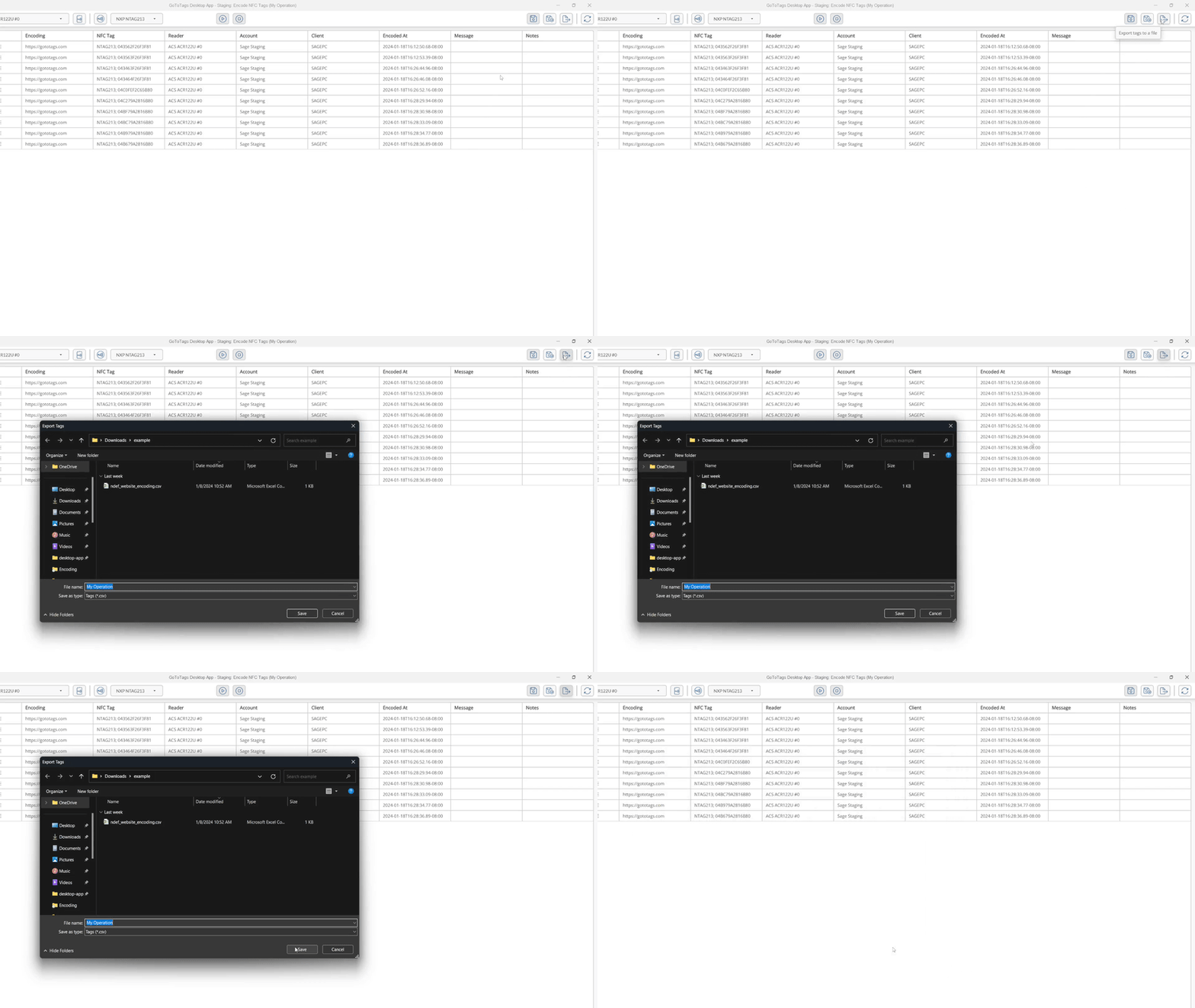
When encoding is paused or stopped, the operation state will automatically be saved to the operation file which can be reopened in the app at any time. This data can also be exported to different formats such as CSV, TSV and TXT. Exported data cannot be reopened in the app and is meant for user readability. To export the tag data:
- Ensure tag reading is paused or stopped
- Click the “Export Tags” Button
- Select the location and format to export the data to
Errors
During NFC tag encoding, errors may occur for several reasons, but are most common when NFC tags are moved away from the reader too quickly. When an error is received for a known reason, the row in the operation will flash red. As long as the NFC tag is not corrupted, encoding may be reattempted. If the NFC tag continues to produce errors and cannot be encoded, the row of data can be skipped by right-clicking it and clicking “Mark Bad Tag”. Errors will also occur if a previously encoded tag is placed on the reader again. In this case, the row for this tag will be highlighted in red until the tag is removed.
If you believe you have encountered an unexpected problem with the app, submit a bug report.
 https://gototags.com/wp-content/uploads/sites/12/2025/11/desktop_app_v4300_release.jpg
454
1300
bethanjohnson
https://gototags.com/wp-content/uploads/sites/12/2024/01/gototags_logo.svg
bethanjohnson2025-11-06 14:17:562025-11-14 12:02:34GoToTags Desktop App v4.30.0 Introduces Two Specialized NFC Encoding Operations
https://gototags.com/wp-content/uploads/sites/12/2025/11/desktop_app_v4300_release.jpg
454
1300
bethanjohnson
https://gototags.com/wp-content/uploads/sites/12/2024/01/gototags_logo.svg
bethanjohnson2025-11-06 14:17:562025-11-14 12:02:34GoToTags Desktop App v4.30.0 Introduces Two Specialized NFC Encoding Operations https://gototags.com/wp-content/uploads/sites/12/2025/10/posts_use_nfc_tags_iphone-copy.jpg
455
1300
bethanjohnson
https://gototags.com/wp-content/uploads/sites/12/2024/01/gototags_logo.svg
bethanjohnson2025-10-31 13:24:332025-11-14 12:02:58How to Use NFC Tags with an iPhone (iOS)
https://gototags.com/wp-content/uploads/sites/12/2025/10/posts_use_nfc_tags_iphone-copy.jpg
455
1300
bethanjohnson
https://gototags.com/wp-content/uploads/sites/12/2024/01/gototags_logo.svg
bethanjohnson2025-10-31 13:24:332025-11-14 12:02:58How to Use NFC Tags with an iPhone (iOS) https://gototags.com/wp-content/uploads/sites/12/2025/10/posts_nfc_chip_performance.jpg
455
1300
bethanjohnson
https://gototags.com/wp-content/uploads/sites/12/2024/01/gototags_logo.svg
bethanjohnson2025-10-23 08:22:392025-10-23 08:22:39Which NFC Chip Type is the Best?
https://gototags.com/wp-content/uploads/sites/12/2025/10/posts_nfc_chip_performance.jpg
455
1300
bethanjohnson
https://gototags.com/wp-content/uploads/sites/12/2024/01/gototags_logo.svg
bethanjohnson2025-10-23 08:22:392025-10-23 08:22:39Which NFC Chip Type is the Best? https://gototags.com/wp-content/uploads/sites/12/2025/10/posts_rfid_label_insertion.jpg
455
1300
bethanjohnson
https://gototags.com/wp-content/uploads/sites/12/2024/01/gototags_logo.svg
bethanjohnson2025-10-10 14:12:312025-10-10 15:31:44GoToTags RFID Label Insertion Service
https://gototags.com/wp-content/uploads/sites/12/2025/10/posts_rfid_label_insertion.jpg
455
1300
bethanjohnson
https://gototags.com/wp-content/uploads/sites/12/2024/01/gototags_logo.svg
bethanjohnson2025-10-10 14:12:312025-10-10 15:31:44GoToTags RFID Label Insertion Service